
Updating the software on a hub
Your Sap Spy hub runs software that we keep improving. You can see which version a hub runs, read what changed, and update it yourself from the app or the website, at a time that suits you.
Which version your hub runs#
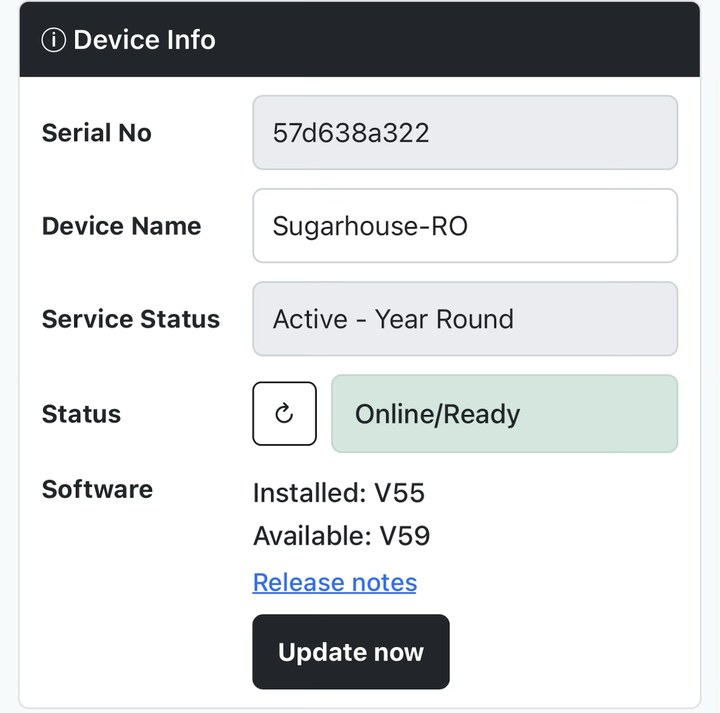
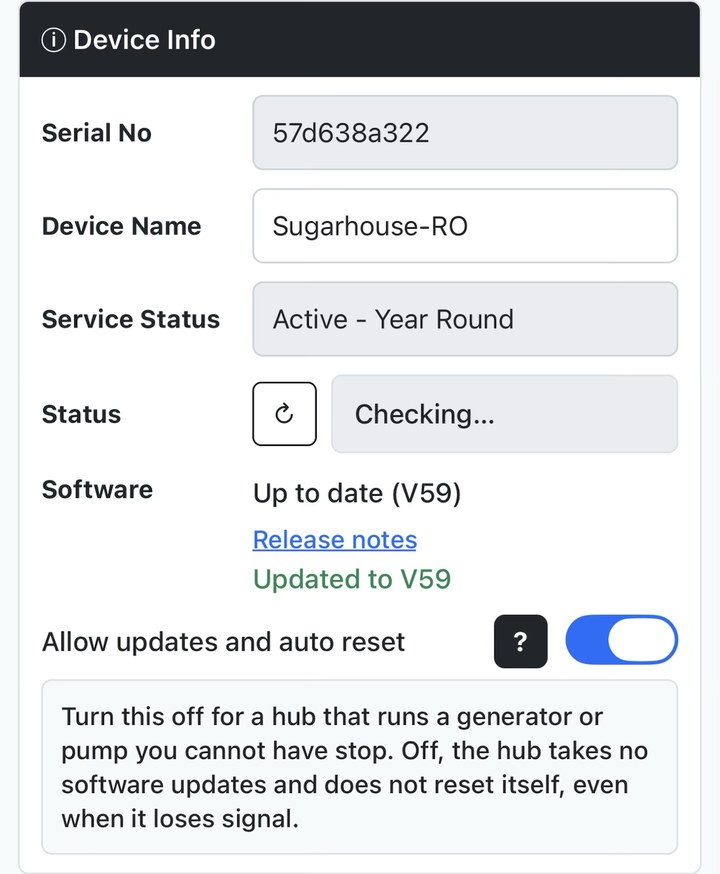
Open the hub's Device Settings. Under Device Info, the Software row shows either Up to date with the version, or the version Installed and the version Available.
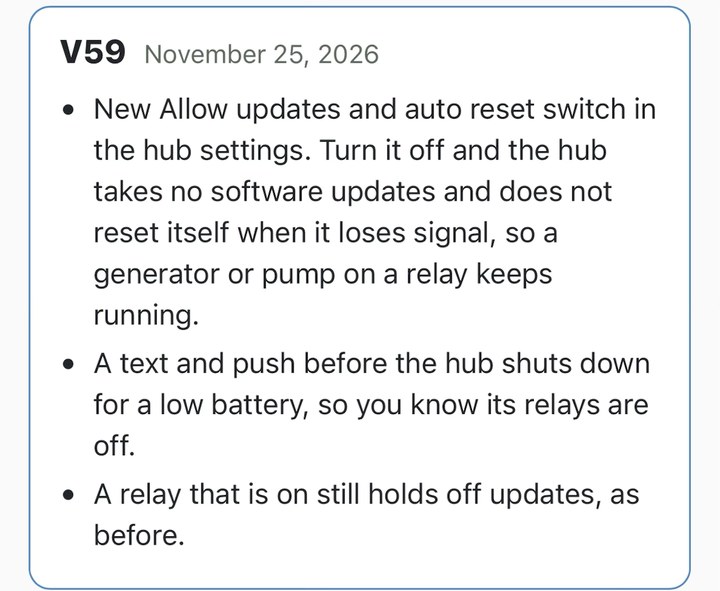
Tap Release notes to see what changed in each version, newest first.
Update now#
Only the account owner and managers see Update now. It works when all four of these are true:
- Both relays are off.
- The hub is online. The Status row reads Online/Ready.
- The hub is on Always On (or another setting that keeps it awake), so it is listening when the update arrives.
- The battery is over 25%.
If one is missing, the button is grey and the line under it says which one.
- Tap Update now.
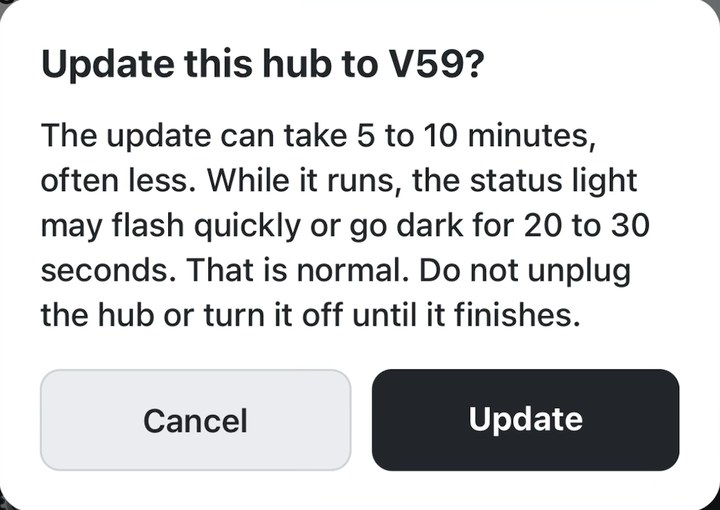
- Read the box and tap Update.
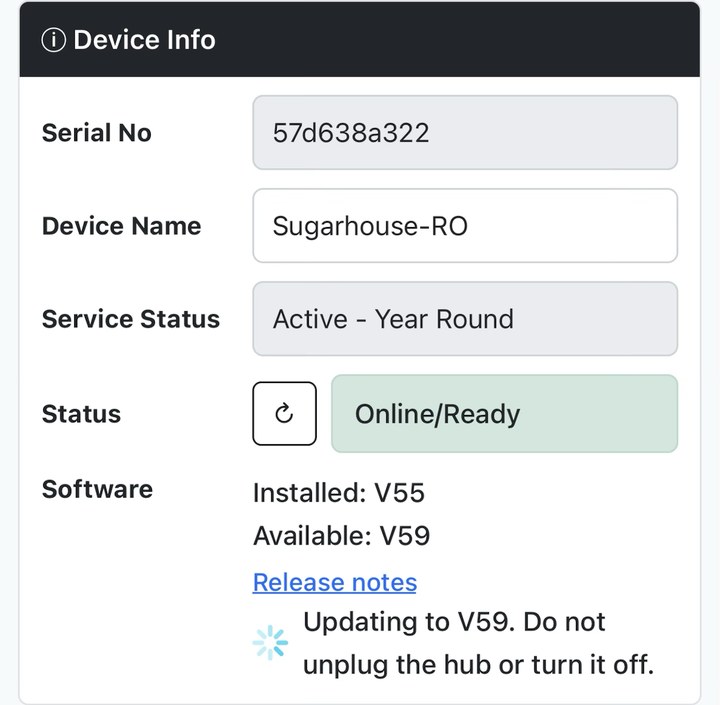
- The Software row shows Updating while it runs. You can leave the screen; the update carries on.
- When the hub reports the new version, the row says Updated and you get a notification.
The update can take 5 to 10 minutes, though often it is done in a minute or two. While it runs the status light may flash quickly or go dark for 20 to 30 seconds. That is normal. Do not unplug the hub or turn it off until it finishes.
Allow updates and auto reset#
From V59 a hub has an Allow updates and auto reset switch, under the Software row. Tap ? beside it for a short explanation. It is on unless you turn it off.
Turn it off for a hub that runs a generator, a pump or anything else you cannot have stop. With it off:
- The hub takes no software updates, neither Update now nor the updates Sap Spy sends to every hub.
- The hub does not reset itself when it loses signal. Normally a hub that cannot reach the network for about 11 minutes resets itself to clear the fault, which drops its relays for a moment. With the switch off it turns its cell radio off instead, keeps its relays as they are, and tries again at its next report.
A relay that is on already holds off updates and resets the same way. The switch keeps that protection in place even when both relays are off.
To update a hub with the switch off, turn it on, tap Update now, and turn it off again when the update is done.
The switch does not stop the low battery shutdown. A hub with no power and a nearly empty battery still turns its relays off and sleeps until power comes back, to protect the battery. Since V59 it sends you a text and a notification first.
FAQs
One of the four checks is not met: a relay is on, the hub is offline, it is not on Always On, or the battery is at 25% or below. The line under the button says which. Fix that one and the button lights up.
No. A hub keeps working on the version it has. Sap Spy also sends new versions to every hub from time to time; Update now just lets you have one sooner, at a time that suits you.
The Software row says The update did not finish. Try again. The hub keeps running the version it had. Check that it is online and powered, then tap Update now again.
The switch arrives with V59. Update the hub first and it appears.
Yes. The hub keeps its sensor settings, its relay names and its Auto temperatures through an update.
No. Only the owner and managers can update a hub or change the switch. Crew can still see whether the hub is online and take readings.
Have a question this doesn't answer? Email info@sapspy.com or call 920-809-4811. We're producers too.