
Hours: clock in, how long, and the week
Tasks keeps the hours without a timesheet. Clock in at the woods, mark tasks done, and the week adds itself up.
Clock in and out#
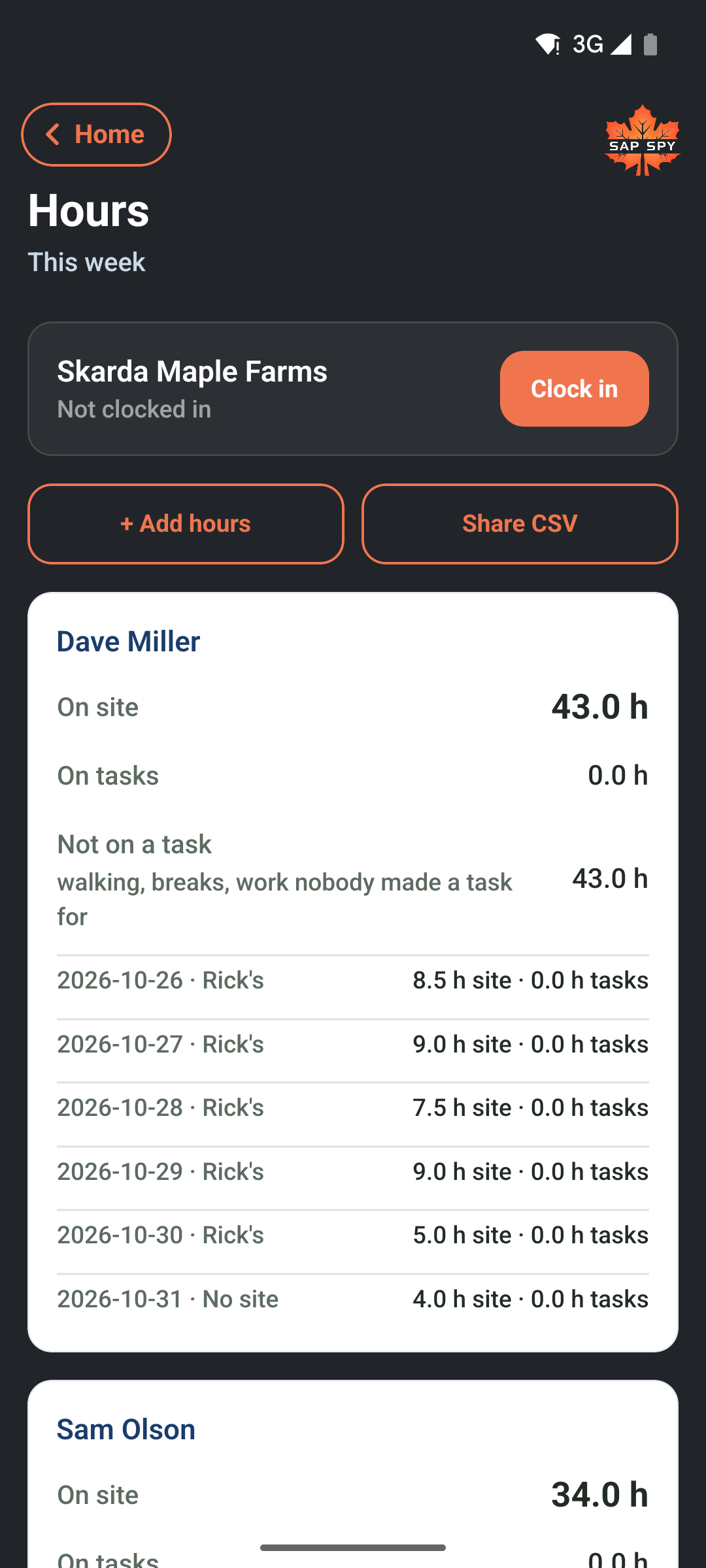
Tap Hours at the bottom of the Tasks screen, then Clock in. The app asks which site you are at and, if you like, what you are doing. Clock out when you leave.
- When you open the app standing on one of your sites and are not clocked in, it offers Clock in? at the top.
- When you open it far from the site after a long day, it asks Still at Rick's? and offers the last time it saw you there as the clock-out.
- A clock-in left running closes itself after 12 hours and the Hours screen marks it Needs a look, with a Fix button to set the real time.
How long, on every Done#
Every Done asks how long the place took. The app guesses from Start, or from your last Done, and you can change it or leave it empty. That number is the task's hours, by person.
The week#
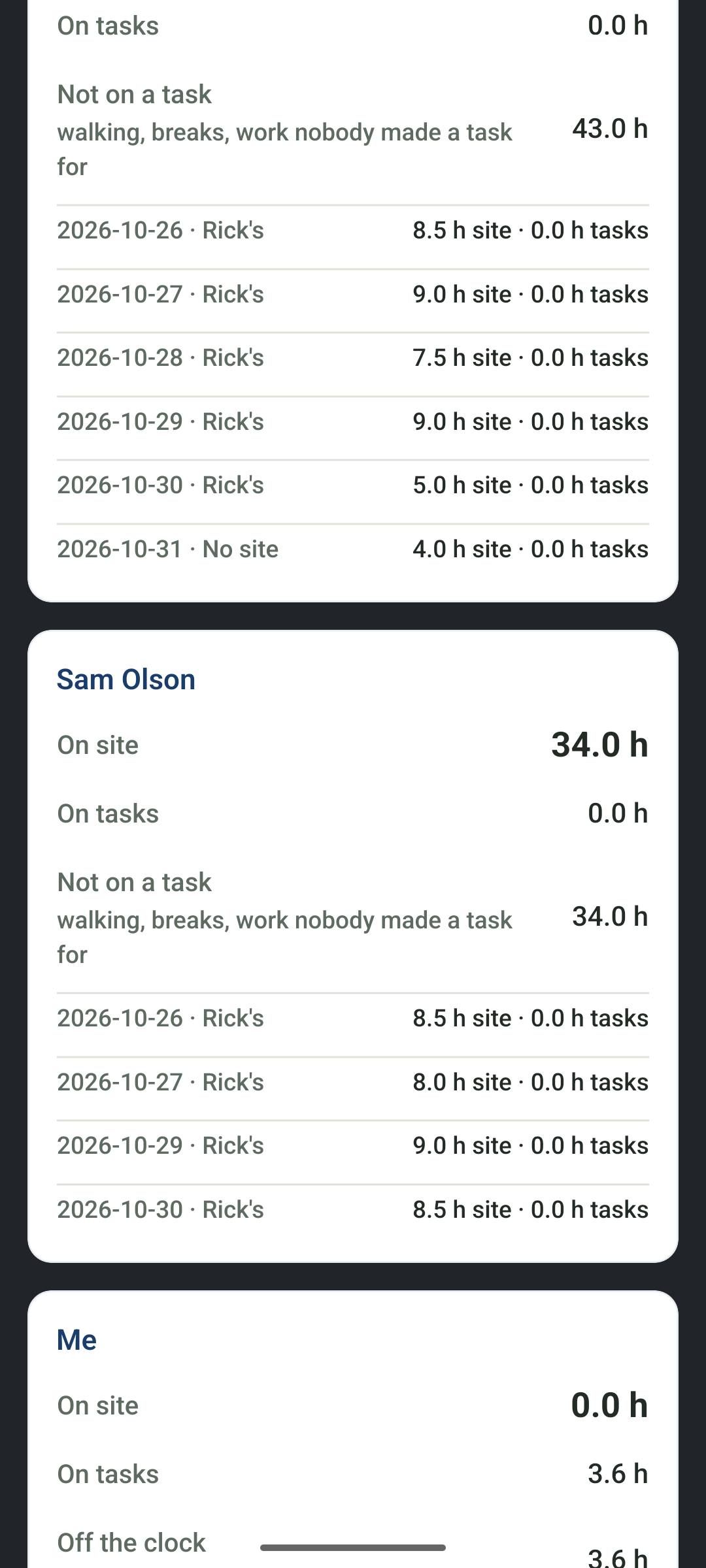
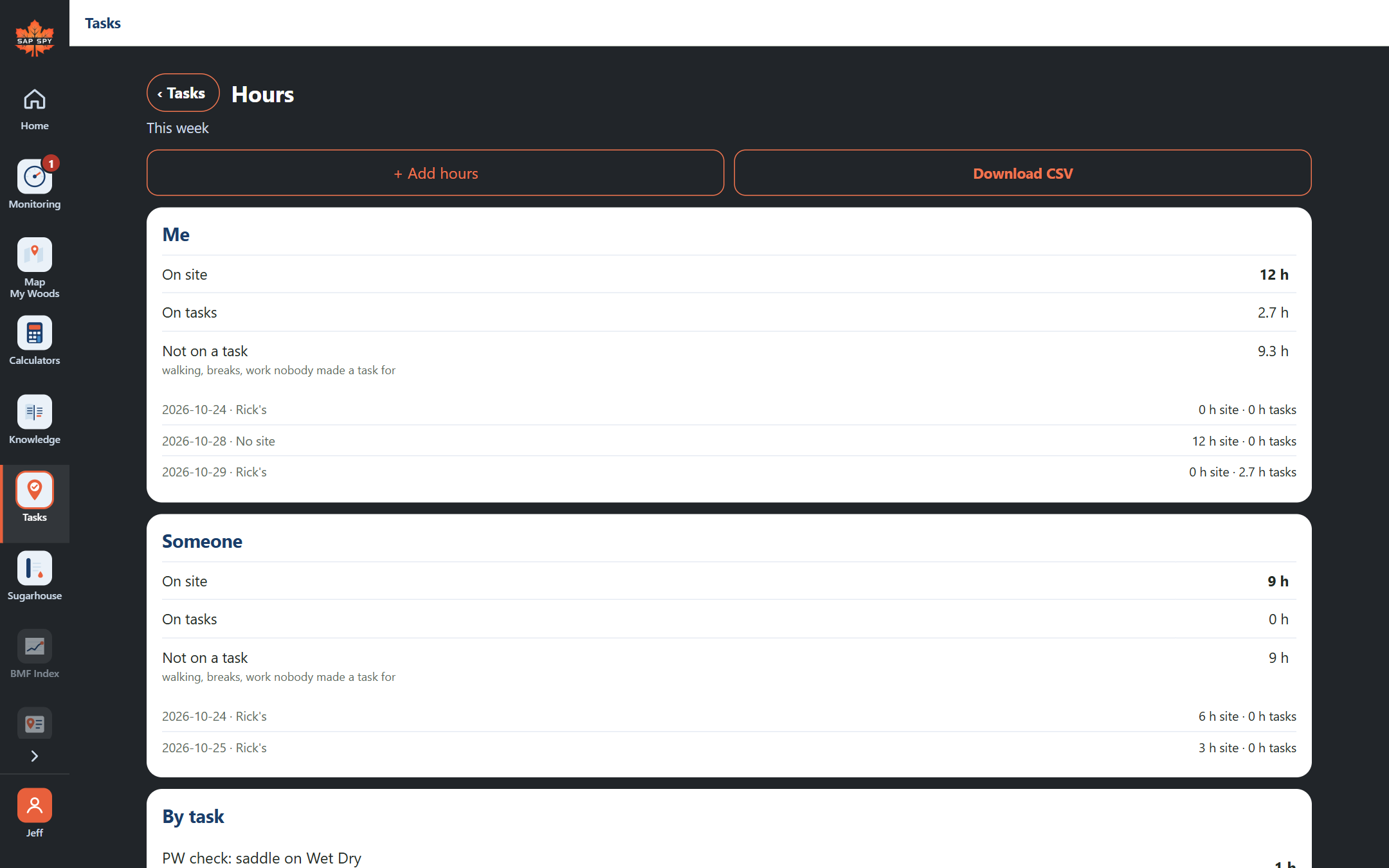
Hours shows, for each person: on site, on tasks, and the time between (walking, breaks, work nobody made a task for), day by day, then By task.
- + Add hours adds a day's time by hand: total hours, or a start and an end, with a note. A manager can add them for someone else.
- Share CSV sends the week as a file, one row per person per day, for whoever runs payroll. The row says how each number was entered: typed on Done, guessed, added by hand, closed at 12 hours, fixed later.
On a computer#
sapspyapp.com/tasks/hours shows the same screen for everyone, with Add hours, Fix, and Download CSV. Clocking in and out stays on the phone, where you are.
Have a question this doesn't answer? Email info@sapspy.com or call 920-809-4811. We're producers too.