
Manage: your operation, its sites, and the people on it
A sugaring operation is more than one person. A spouse who watches the tanks. A hauler who only needs to know when a tank is full. Crew who fix lines. Someone who sells you sap. Manage is how they all get in, and what each of them sees.
Finding it#
Open the Sap Spy app. Manage is near the bottom of the home screen, just above Ask for a change.
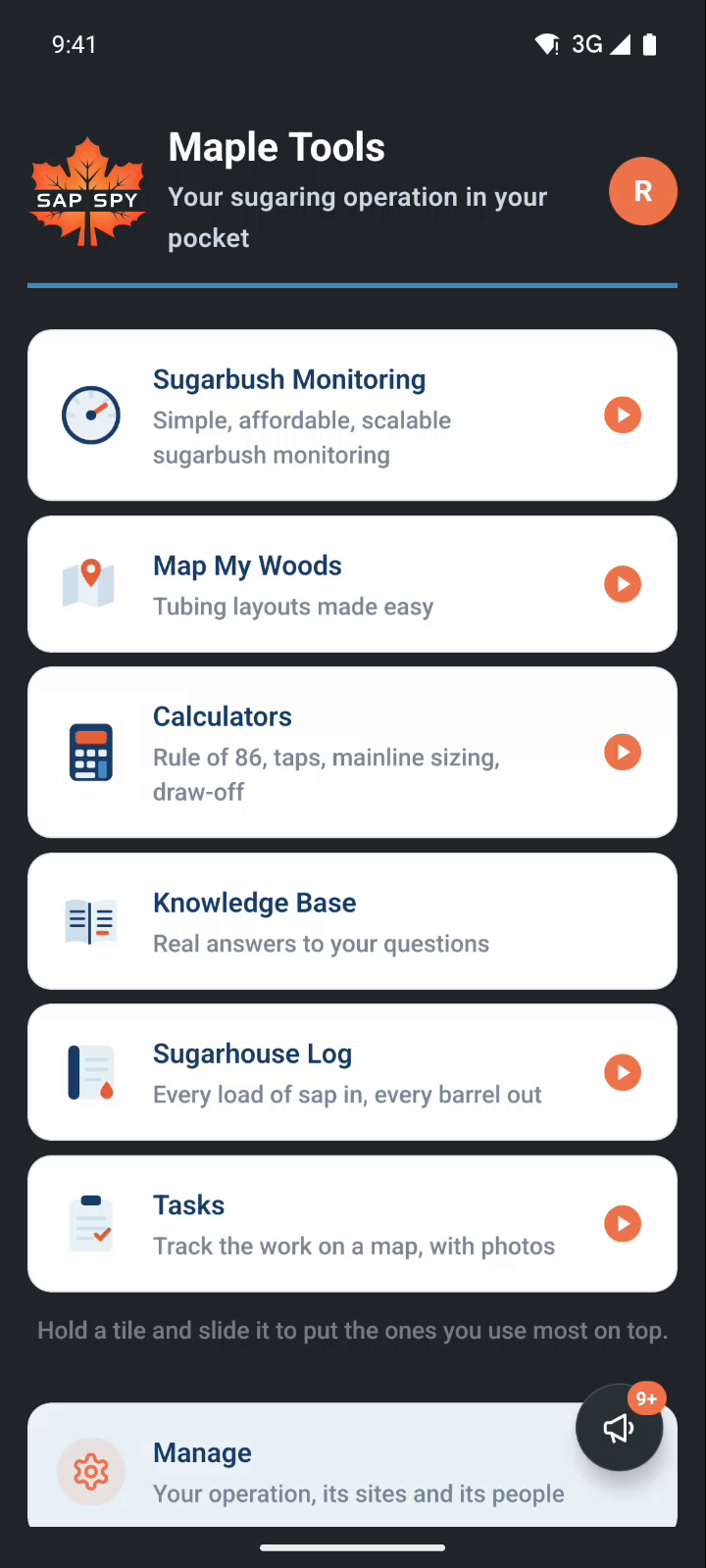
Three things live there.
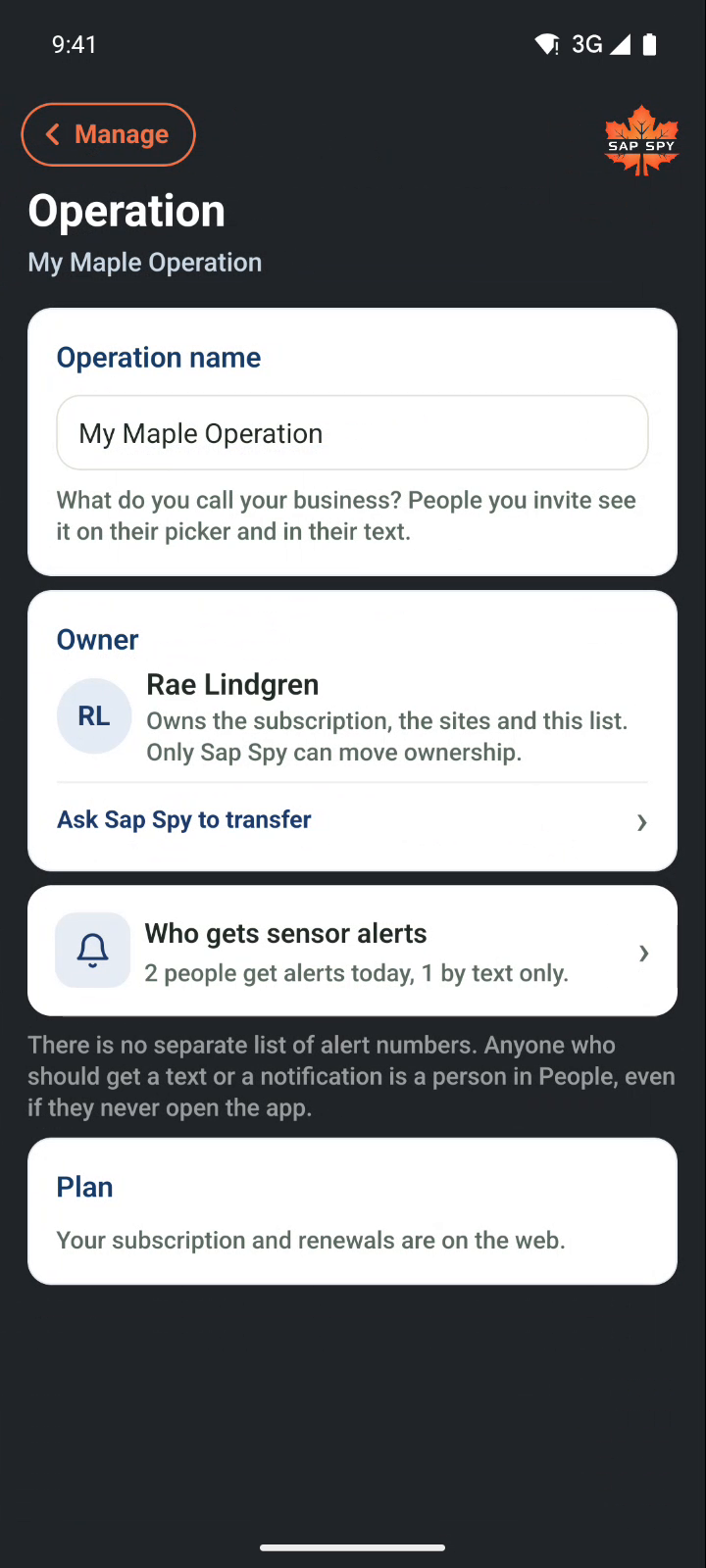
- Operation: your sugaring business. Its name, who owns it, who gets sensor alerts, your plan.
- Sites: each distinct location in the business. A sugarbush, a sugarhouse, an offsite warehouse. Each one has its own map and its own settings.
- People: everyone on the operation, with their role beside their name.
One sign-in for each person#
Everyone you invite signs in on their own phone, with their own number or email. No shared password. What they see follows their role and their site list, and sensor alerts follow the same list, so the right people hear about the right tanks. There is no separate list of alert numbers to keep up.
| Role | What they get |
|---|---|
| Manager | Everything on their sites: tasks, maps, settings, the Log, and who is on the crew. Only the owner can make someone a manager. |
| Crew | Does tasks on their sites. Sees the maps and the readings. |
| Hauler | Tank levels and tank alerts only. Nothing else. |
| Viewer | Looks, never changes anything. |
| Sap only | Sells you sap. No sites, just their own loads in the Log under their name. |
The roles are explained in Inviting other people.
Who can use Manage#
The owner of the operation sees all of it. A manager sees the sites and people they manage. Everyone else sees their own Account page, where they can change their name, number and language.
On a computer#
The same Manage is at sapspyapp.com/manage: the four cards down the left, the screen beside them, and every step below works the same way with a mouse. Sign in with the same account as your phone.
FAQs
Yes. People is one list for the whole app. Someone you add as crew is on the Tasks crew, sees the maps for their sites, and gets the alerts you set, all from one invite.
No. The invite is a text with a link. One tap signs them in on their phone. If they already use Sap Spy, your operation simply appears on their phone.
They are waiting under Finish these on the Operation page. Each one is either you, someone else who gets a name and a role, or gone. They keep getting texts either way. See Your operation and sites.
Yes, with one sign-in. See Switching operations.
Have a question this doesn't answer? Email info@sapspy.com or call 920-809-4811. We're producers too.