
Compass: which way you are facing, holding a bearing and walking to a pin
Map My Woods on the phone knows which way you are facing. Use it to find a tank or the end of a line, to lay a new mainline out straight, or to drop a pin a set distance away.
The compass is in the phone app only. A computer has no compass in it.
The arrow on the blue dot#
The blue dot is you. The small arrow on it points the way the top of your phone is pointing. Turn, and the arrow turns. Walk, and the dot moves.
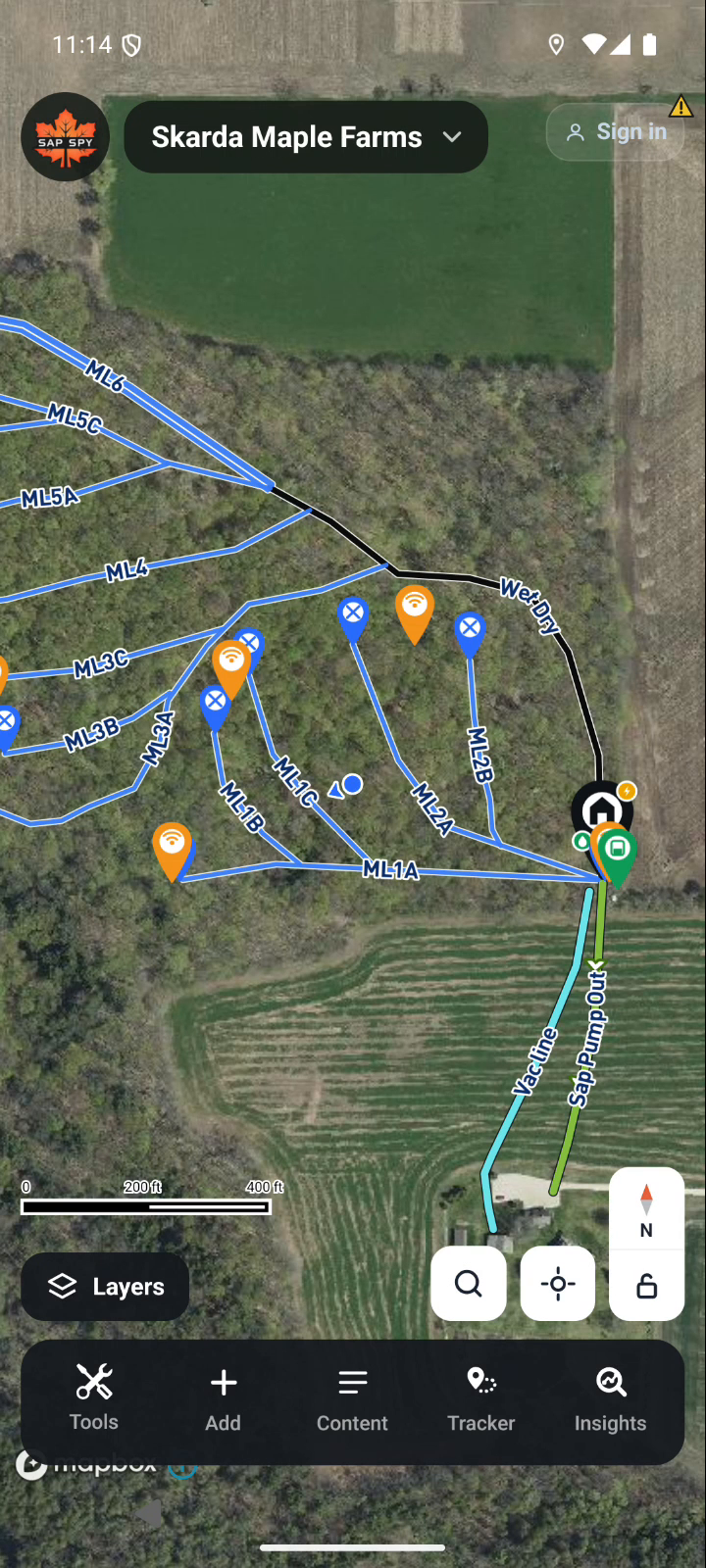
Hold the phone flat, like a plate, for the steadiest reading.
Which way is up#
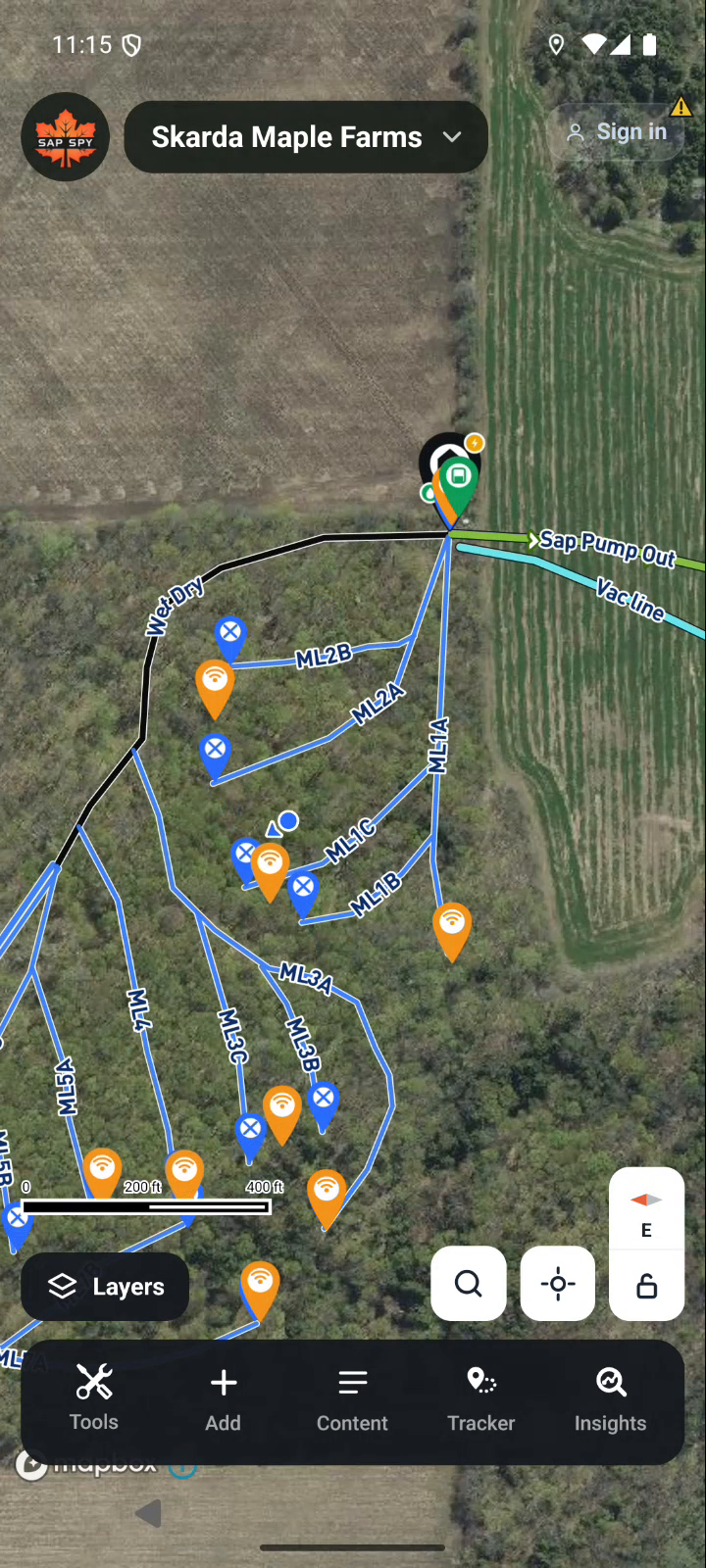
The tall button at the bottom right has two halves.
- The dial (top): tap it to turn the map a quarter turn. North, east, south, then west at the top. The orange end of the needle always points north.
- The padlock (bottom): tap it to keep the map at that angle. Tap it again to let your fingers turn the map.
Compass mode#
Tap Tools, then Compass.
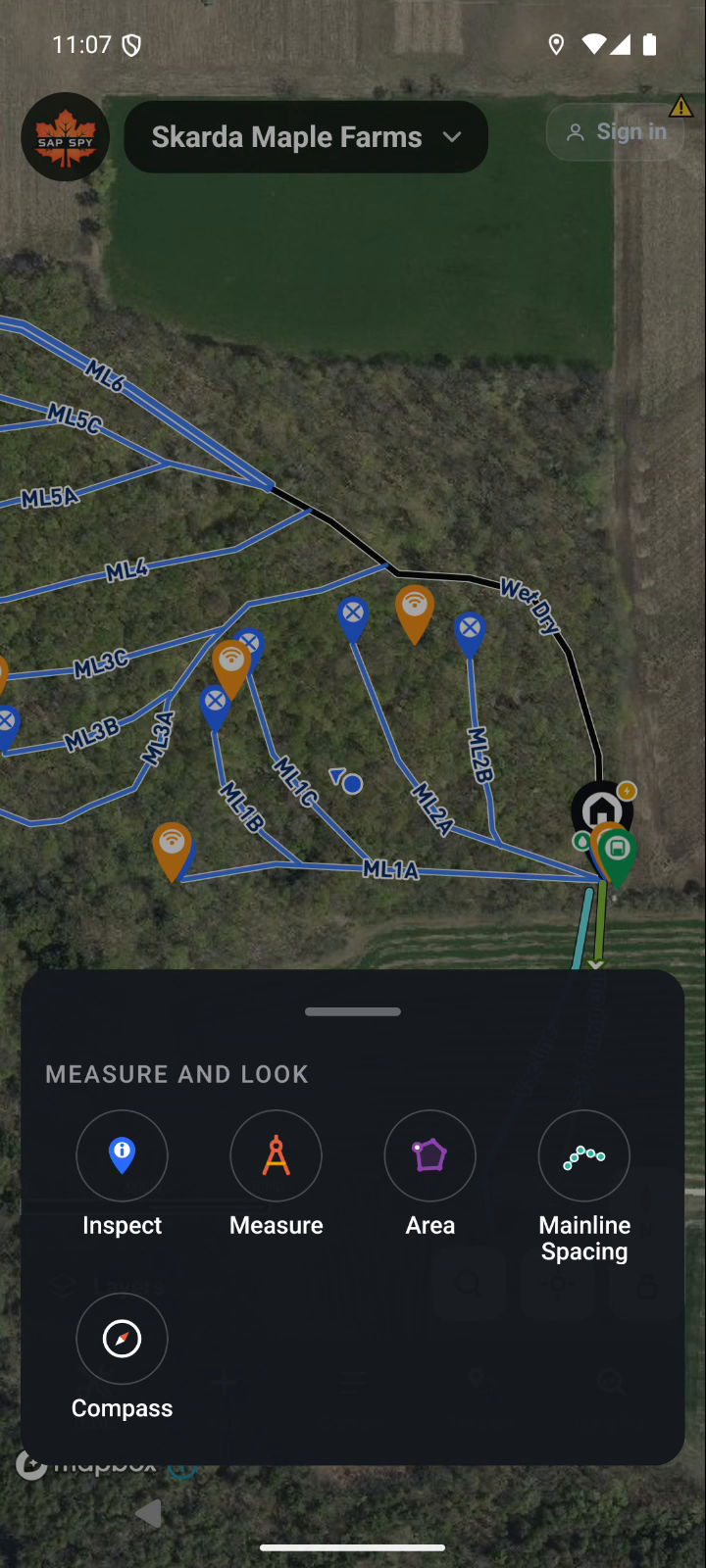
The map zooms in and turns as you turn, so what is ahead of you is always up the screen.
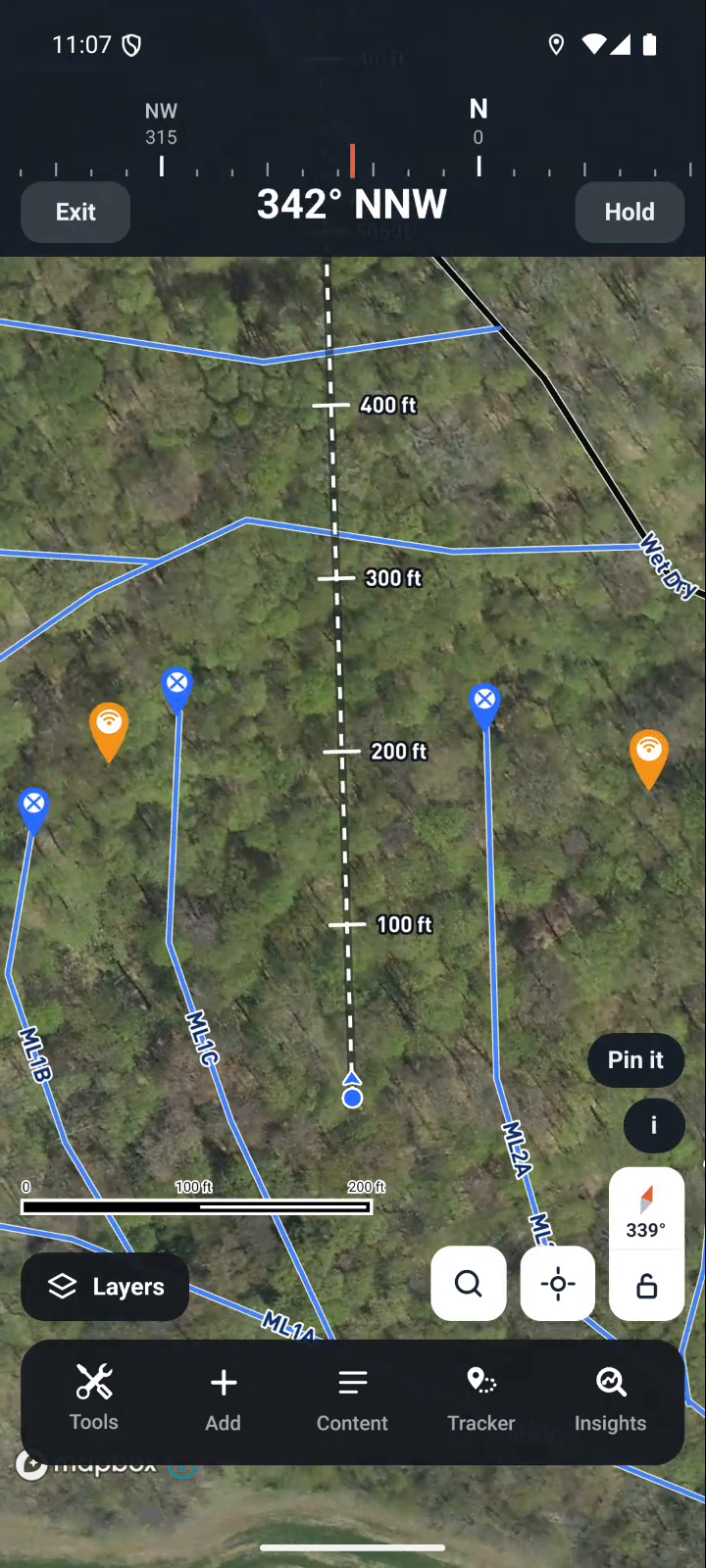
- The tape across the top slides as you turn. The orange mark in the middle is where you are facing.
- The big number is your bearing: degrees from north, and the direction in letters.
- The dashed line runs straight ahead of you, with the distance marked along it.
- The screen stays on while Compass mode is open.
Tap Exit to go back to the map as it was.
Hold a bearing and walk it#
This is for laying out a line that has to run straight.
- Face the way the line should run.
- Tap Hold. The button turns blue and reads Held.
- Walk. The line stays on the ground where you put it.
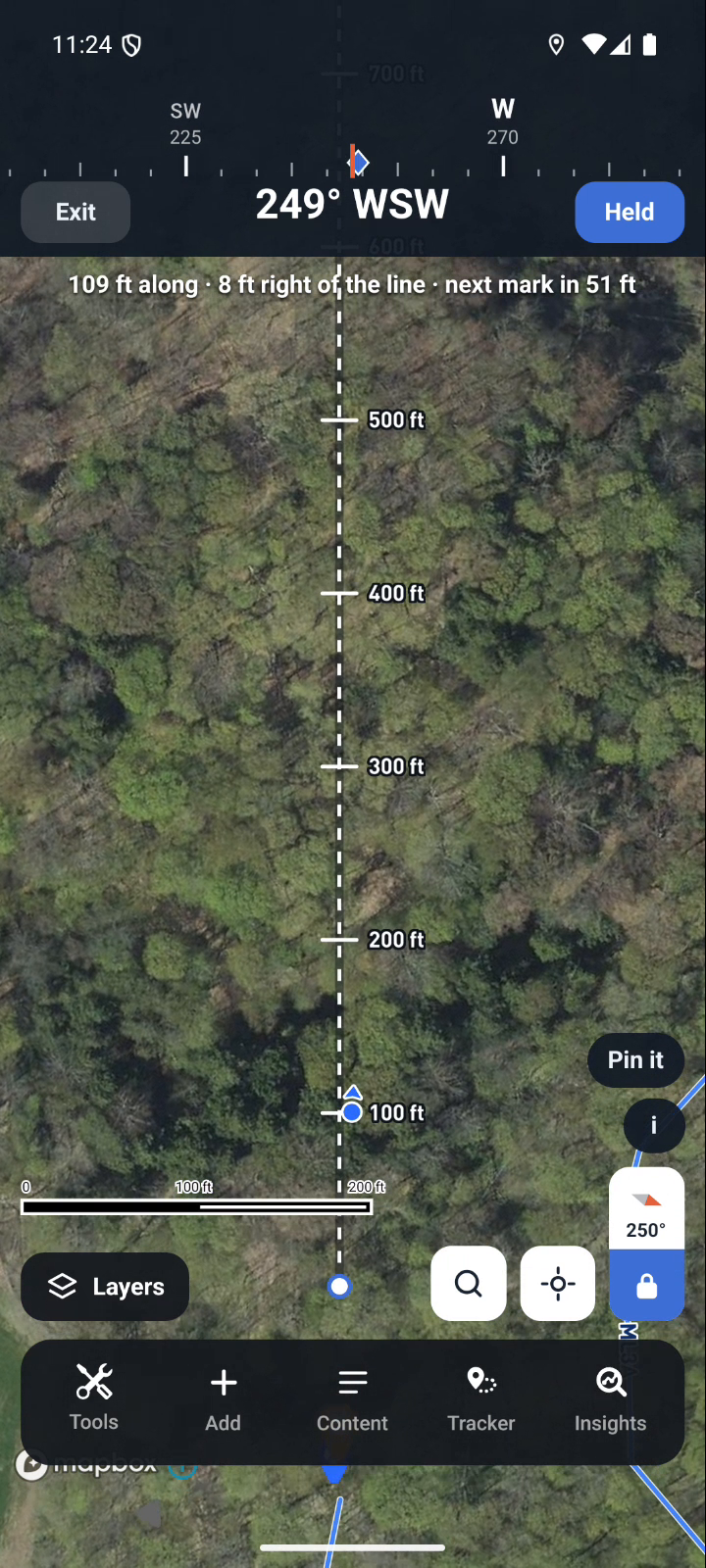
The line under the band tells you three things as you walk:
- How far along the line you are, from where you tapped Hold.
- How far left or right of the line you have drifted. Step back until it reads on the line.
- Next mark in: the distance to the next mainline spacing mark. The phone taps in your hand at each one. The spacing is the one set in Tools, Mainline Spacing.
Tap Held to let go of the line.
Type the bearing#
If you already know the bearing, tap the big number, type the degrees (0 to 359) and tap Hold it.
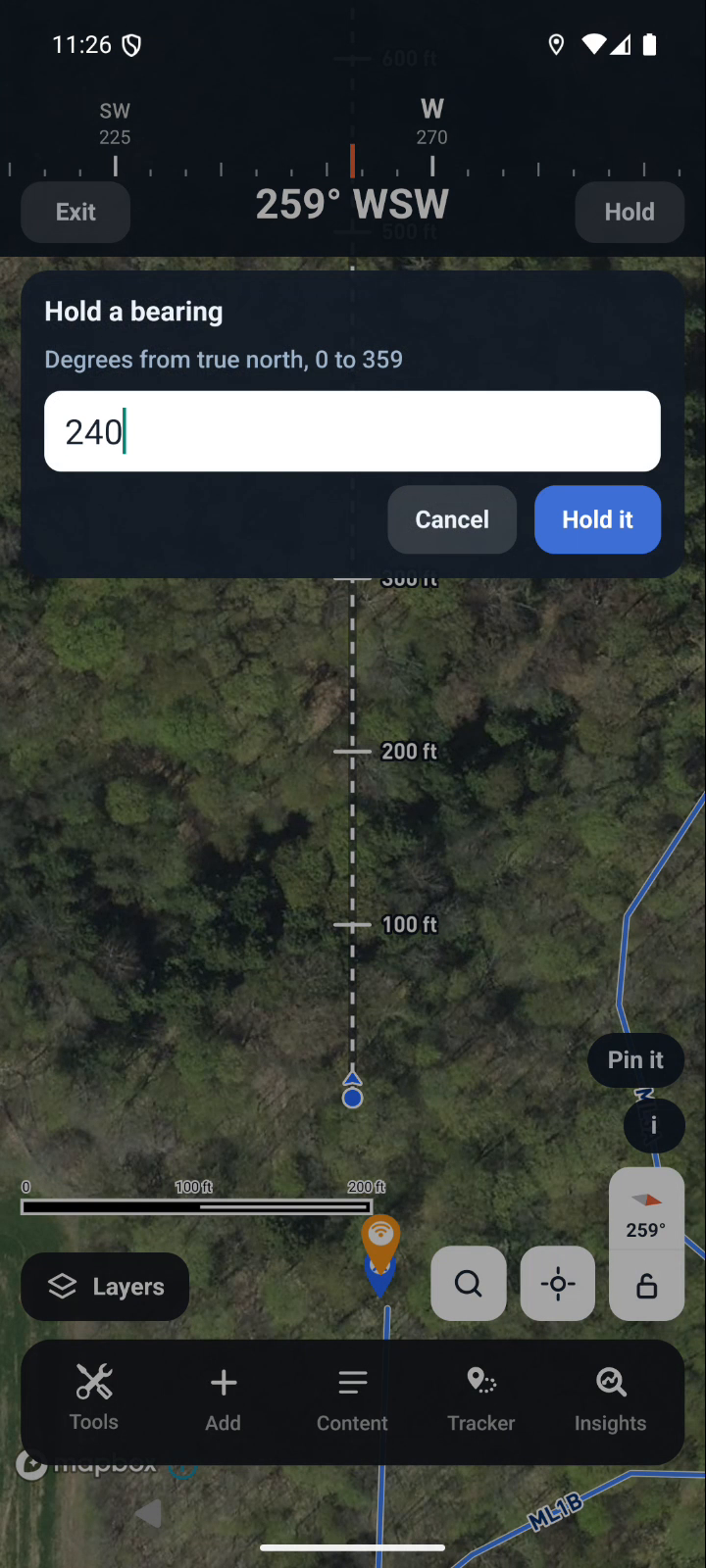
In Compass mode the dial holds north, east, south or west with one tap.
Pin it#
Pin it drops a pin on the line, as far out as you say. Use it to mark where a line should end, or a spot to walk to later.
- Hold a bearing, or just face the way you want.
- Tap Pin it.
- Type how far, in feet, and tap Drop pin.
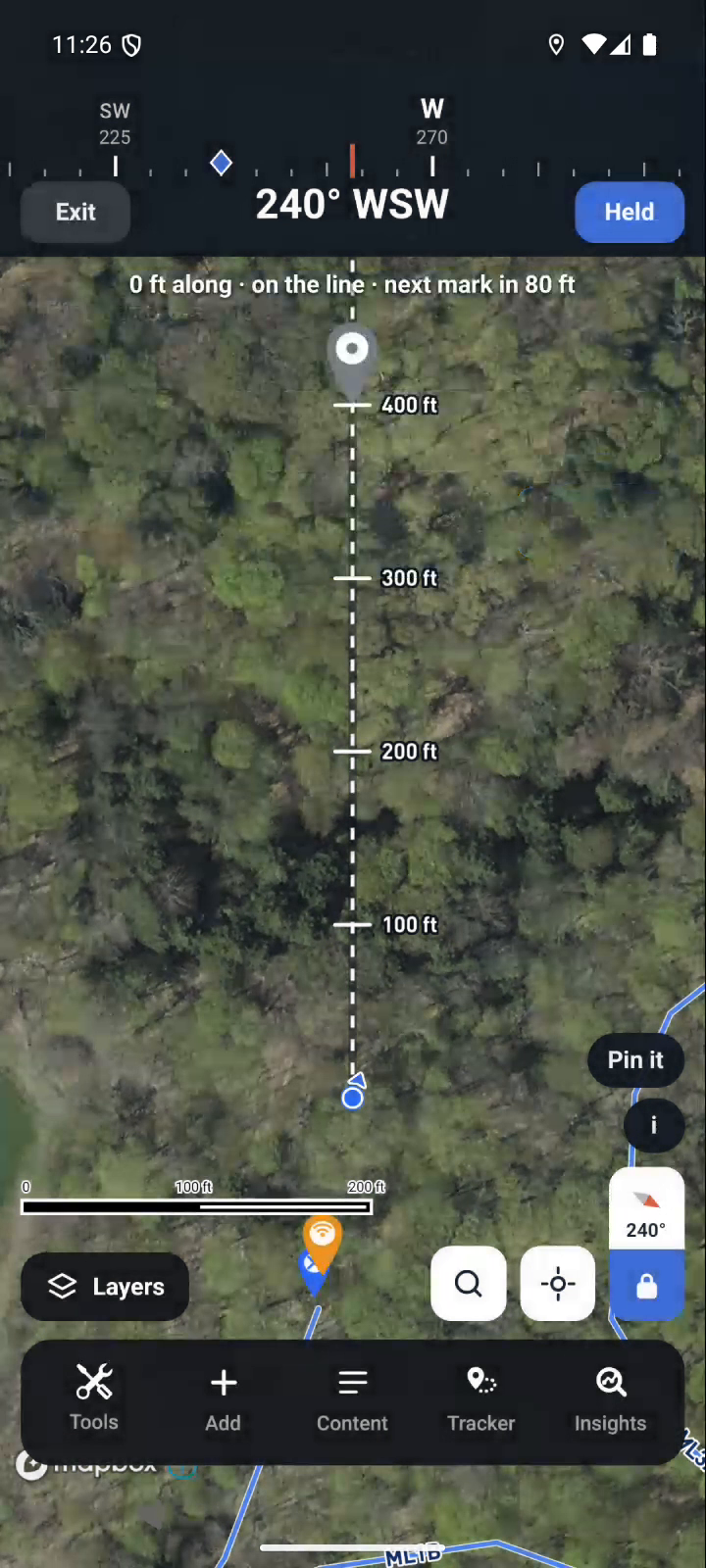
The pin is saved on your map, named for its bearing. Tap it later to rename it, move it or delete it.
Pin it is not offered on the view-only example map.
Walk to a pin#
Any pin on your map can be walked to.
- Out of Compass mode, tap the pin on the map.
- Tap Walk to it.
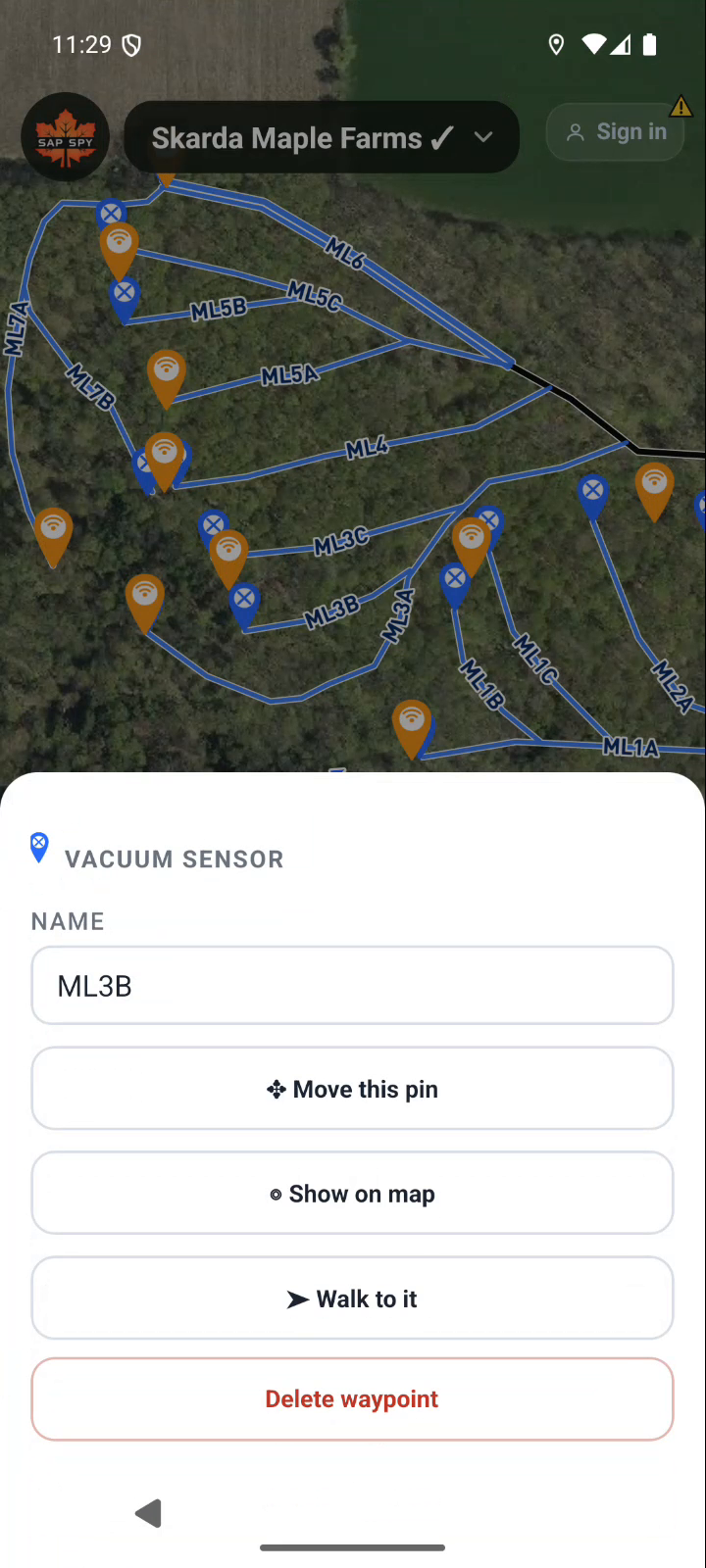
Compass mode opens with the line running straight to the pin. The readout shows how far it is and which way.
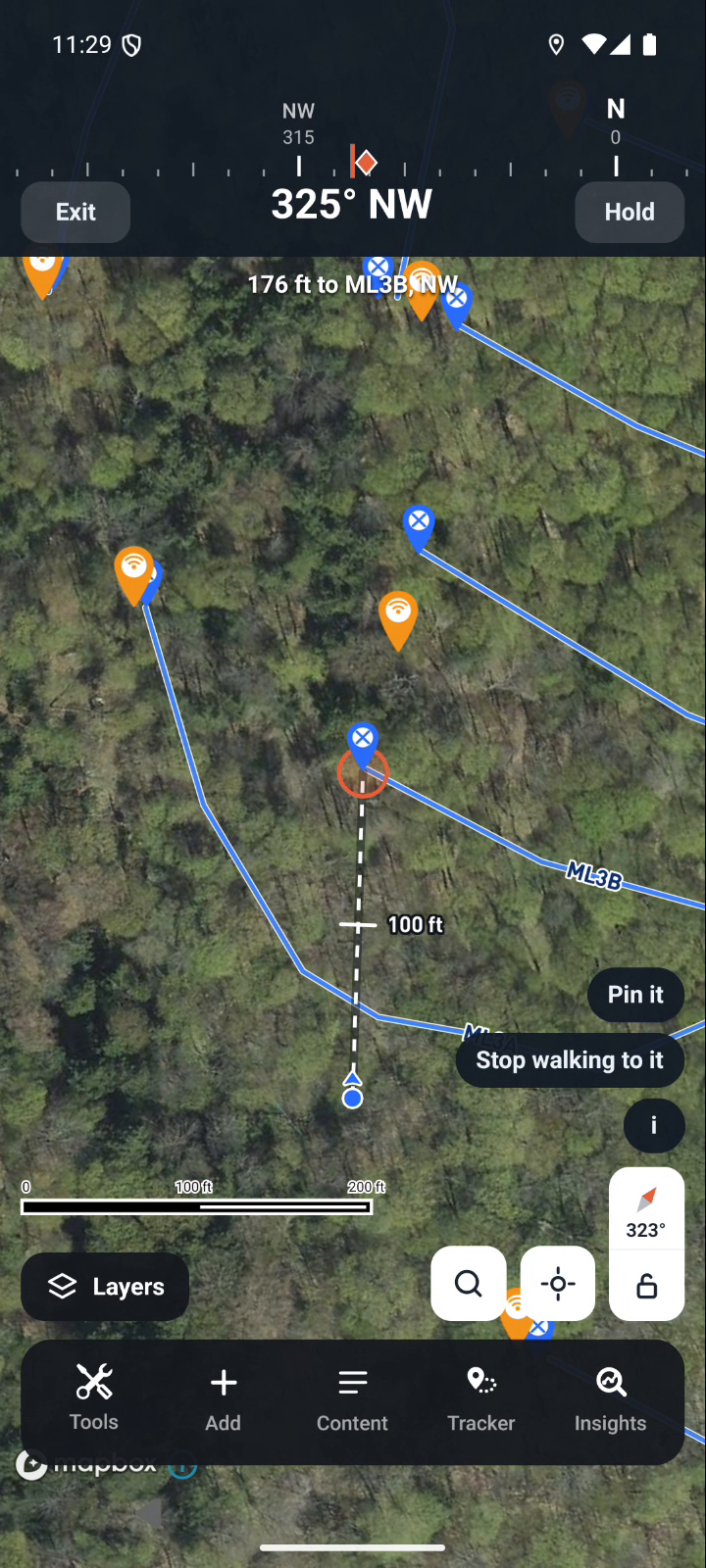
Turn until the orange diamond on the tape sits under the middle mark, then walk. Your phone buzzes when you are within about 15 feet, and the readout says you are there.
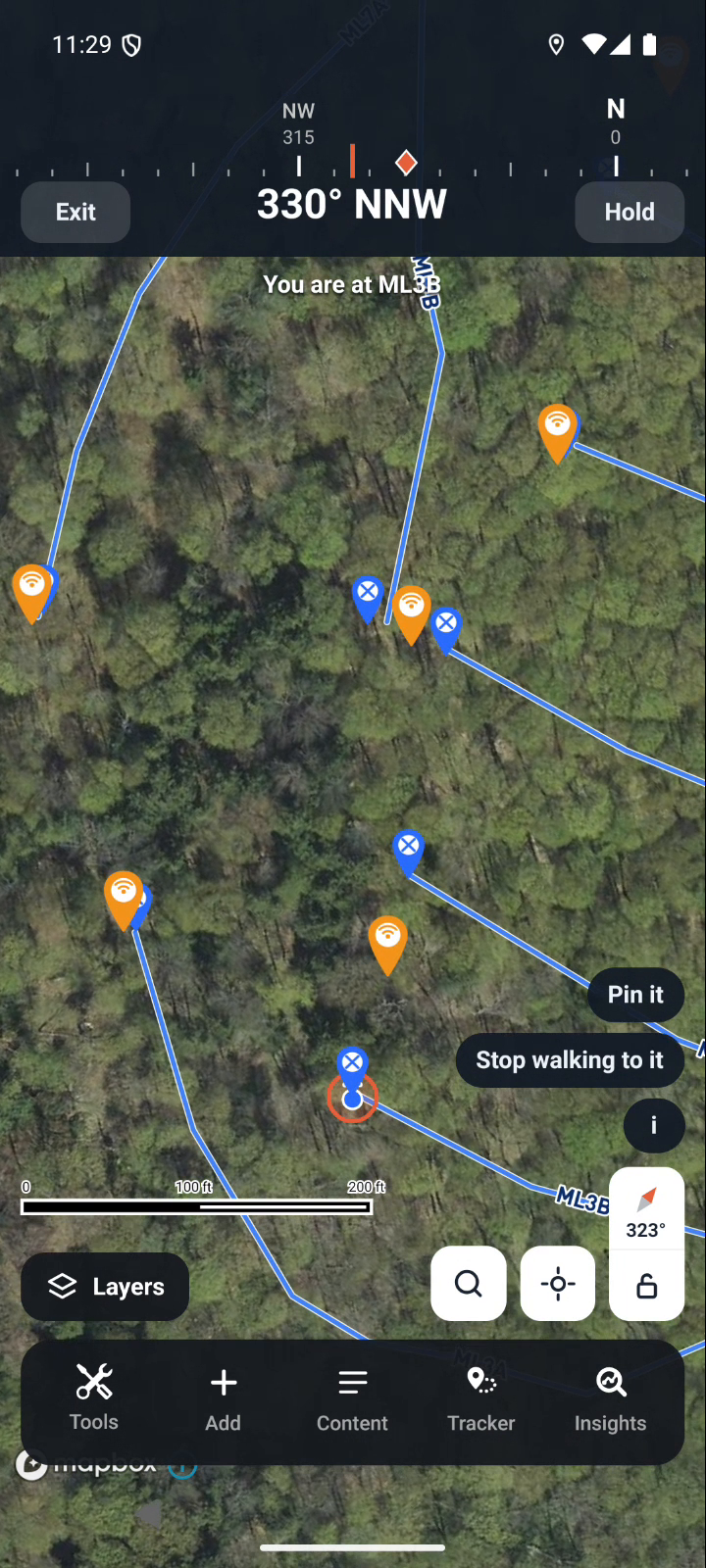
Tap Stop walking to it to drop the line and keep the compass open.
If the compass seems off#
Tap the i at the right edge. It shows how good the compass and the GPS are right now. When the phone is unsure, the i turns yellow and reads Compass unsure.
- Wave the phone in a figure 8 a few times. That resets the compass.
- Keep it away from metal and magnets: the truck, the vacuum pump, mainline support wire, and a phone case with a magnet in it.
- Give the GPS a minute under heavy cover. The dot and the distances are only as good as the GPS fix.
FAQs
True north, the same as the map, Measure and every line you have saved. A hand compass reads magnetic north, which is a few degrees different in Wisconsin and up to about 15 degrees in New England and Quebec. Until the phone has a GPS fix it can only show magnetic north, and the i says so.
A phone compass is good to a few degrees when it is held flat and away from metal. Over 300 feet, 3 degrees is about 15 feet to one side. It is right for laying out and finding your way. It does not replace a transit for a line that has to be exact.
Yes. The compass and the GPS do not need a signal. Save the map for offline use first so the aerial photo is there too.
The arrow follows the top edge of the phone. Hold the phone flat in front of you, top edge away from you.
Have a question this doesn't answer? Email info@sapspy.com or call 920-809-4811. We're producers too.