
Signing in, saving and working without a signal
Your lines and pins are saved on the phone the moment you draw them. Signing in puts them in your account as well. Saving a map for offline puts the aerial photo and the ground elevation on the phone too, for a woods with no signal.
Is my map saved?#
Look at the map's name at the top of the screen.
- A check mark: saved, and backed up.
- Saving: on its way.
- Saved on phone: safe on this phone, and waiting for a signal to back up.
- Offline: no signal right now. Keep working.
Signed in or not#
Map My Woods works either way.
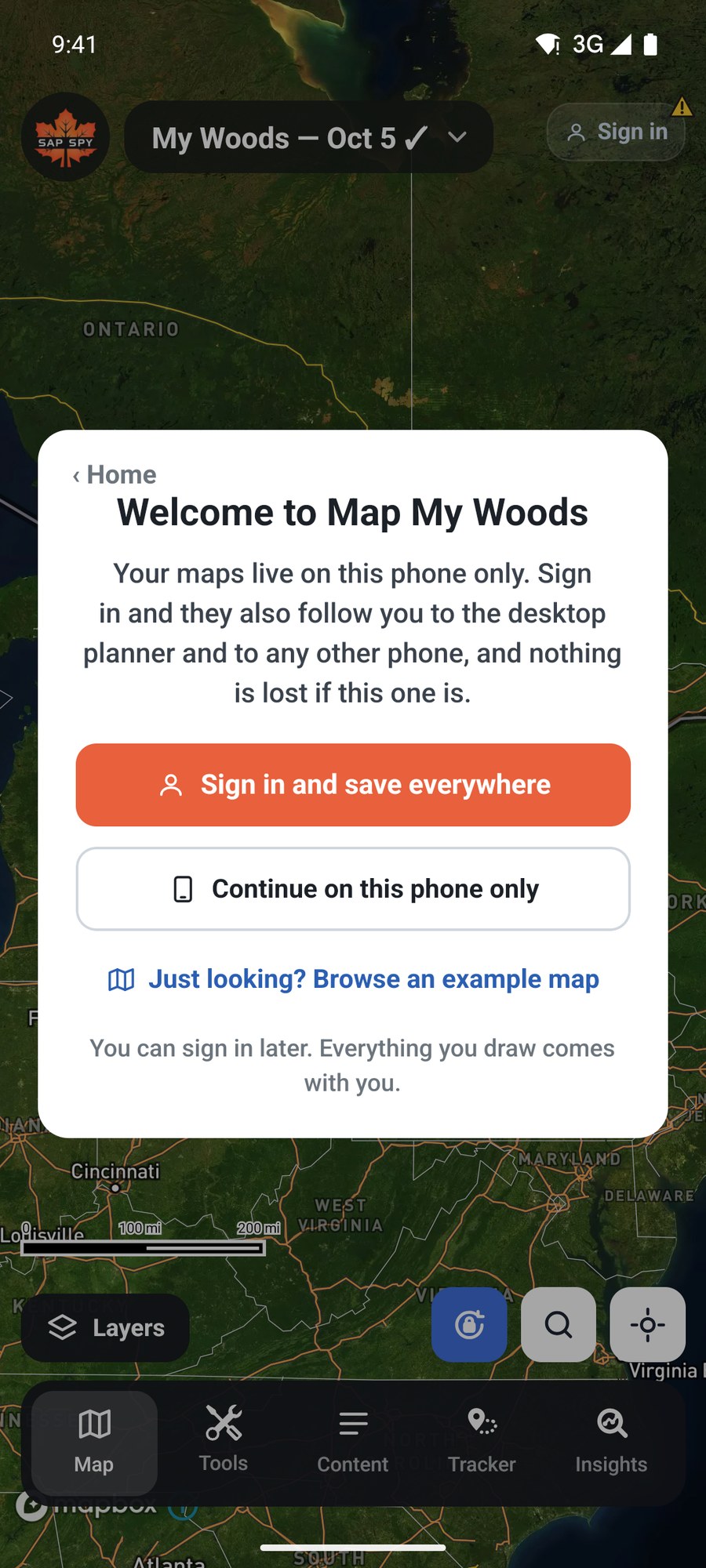
- Signed in: your maps are in your Sap Spy account. They show up on every phone you sign in on and at sapspyapp.com/MapMyWoods, and a lost phone loses nothing.
- Not signed in: your maps are on this phone and backed up without your name on them. The yellow triangle on the Sign in button is a reminder. The app offers once to send you the map's link, which is how you would get back to it on a new phone.
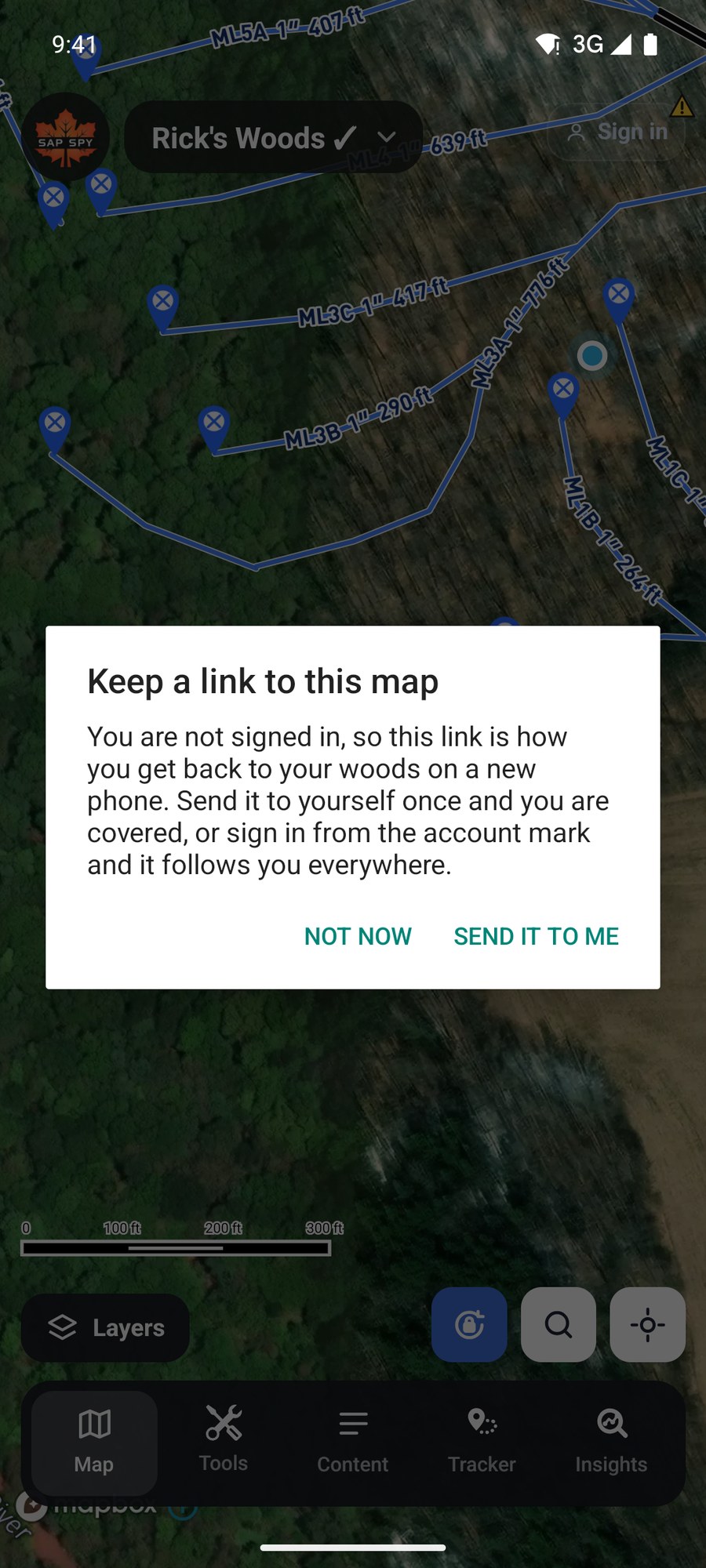
Sign in any time from the top right. Everything you drew comes with you.
Take a map offline#
Before you head somewhere with no signal, tap Layers, scroll to the bottom and tap Take this map offline.
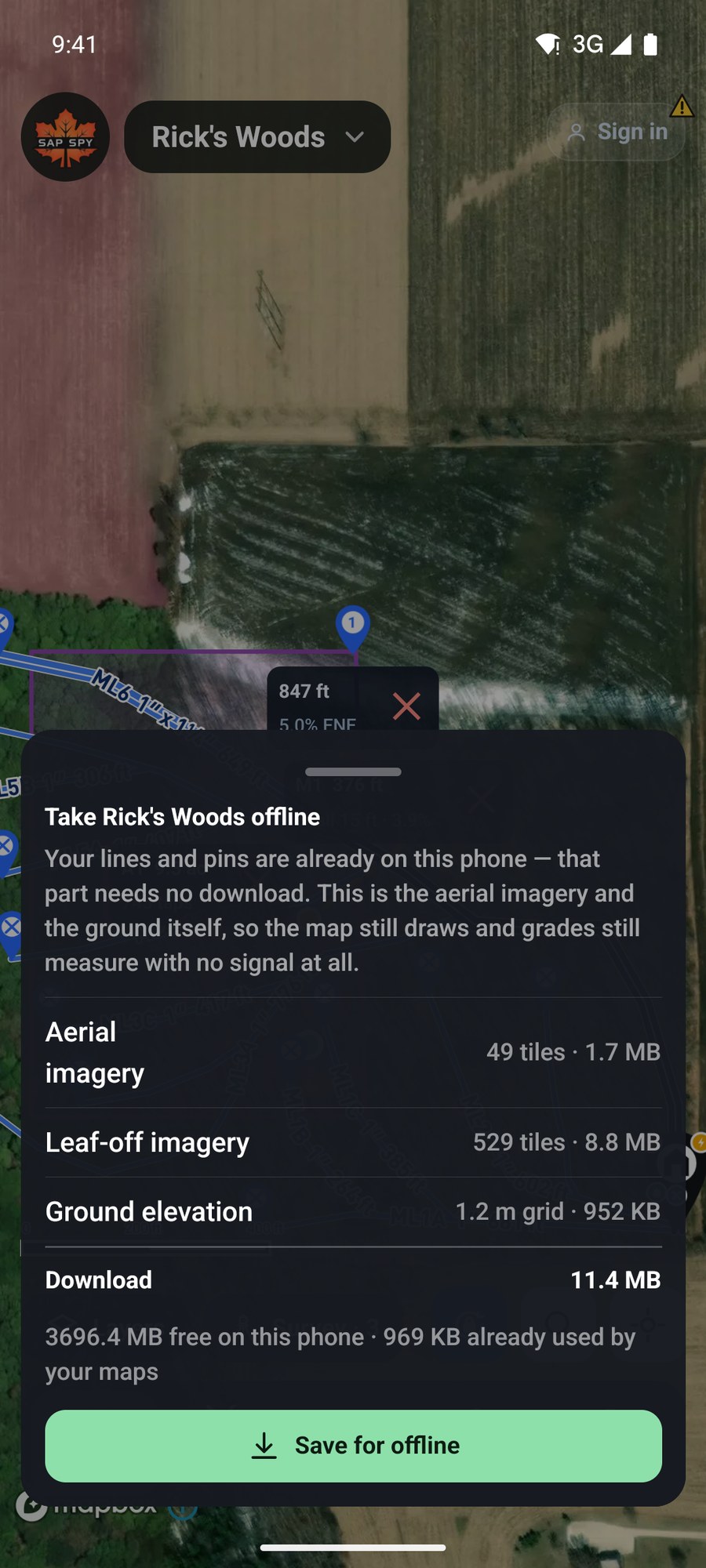
It lists what it will download for the area of your map: the aerial imagery, the leaf-off imagery where there is some, and the ground elevation. Tap Save for offline. The sheet shows the size first: the 9 acre woods in the picture is about 11 MB.
With the map saved, drawing, walking a line and the grade on every line all work with no signal at all. Your changes are sent the next time the phone has service.
On a computer#
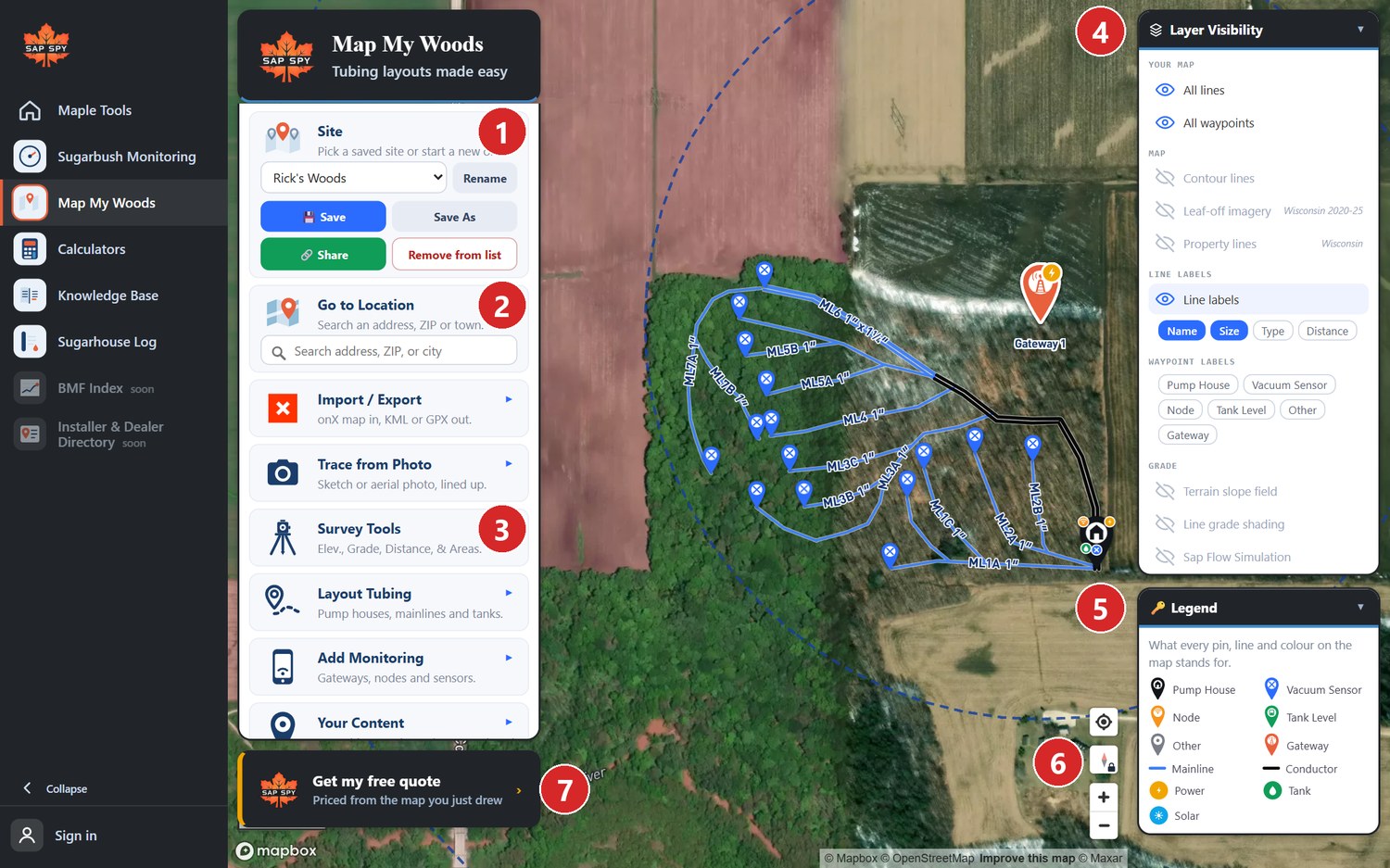
Click Save in the Site box. Signed in, saved maps are listed under Your account; maps opened from a link or drawn before you signed in are under Only on this computer, and saving one makes it yours.
If you close the page with changes you did not save, they are still there next time, with a message offering to Save or Discard them.
Deleting a map#
On the phone, tap the map's name and the x beside a map. On the computer, pick the map and click Delete.
- Remove from this phone takes it off this phone and leaves it in your account.
- Delete everywhere removes it from your account, your phones and the computer. A deleted map can be brought back for 60 days by contacting Sap Spy.
FAQs
Still there. Maps on the phone move into your account when you sign in.
One of them has changes that have not been sent or fetched yet. On the phone, check the map's name for a check mark. On the computer, reload the page.
The sheet shows the size before you download, and what your saved maps already use. Remove on the same sheet frees it.
Have a question this doesn't answer? Email info@sapspy.com or call 920-809-4811 — we're producers too.
This website uses cookies that help the website to function. We use these cookies to provide you with improved and customized user-experience. By tapping 'accept,' you consent to the use of cookies. For more info, see our privacy policy.