
App & Alerts Guide
Everything here is about watching your operation from your phone — how the app works, how to get it on your home screen, how to share it with family and helpers, and how the text alerts behave so you know when you actually need to head to the pump house.
A Web App, Built to Feel Like an App#
There's no app to download from an app store — it's a web app you navigate to, and we're always going to offer it that way. But when we built it, we built it to behave like an app on your phone. I know 90% of our customers are looking at the data on their phone, so it's built for that purpose. It's just not something you install from an app store.
Save it to your home screen#
To make it feel like a real app, save it to your home screen as an icon — then it opens like an app. There's a quick video available showing how. If you get stuck, tell me your phone and browser and I'll walk you through the exact settings.
Staying logged in#
You should only have to log in once — after that it remembers you (we use a cookie). Two things have to be true: you're browsing in normal mode (not private/incognito), and cookies are enabled. If it keeps making you log in over and over, see the FAQs at the bottom.
Sharing Access with Family and Helpers#
Any number of users can be on the account — anyone with the username and password can log in at the same time, on as many phones as you like. Two ways to share:
- Share your username and password — just make your password something generic you're comfortable sharing. Anybody with it can access the account.
- View-only link — say a guy has a neighbor helping, or in my case my parents are almost 80 years old: I want them to see it, but I don't want them jerking with any settings. You share the view-only link and they don't need to create an account — they just click it and it logs them in as you, in view-only mode. You stay the only one who can change anything.
Text Alerts#
Text alerts can be enabled or disabled for any of the sensors we interface, including the most common:
- Low Vacuum
- Full Tank
- Empty Tank
- Temperature (single or continuous)
- Low Battery
How alerts behave#
Once a sensor reads a value above or below the alert condition, a single initial text alert is sent. The sensor must read back into a normal range to "re-arm" before it will send another text alert the next time it crosses the threshold. So you get one clear heads-up, not a phone that won't stop buzzing.
Who gets the texts#
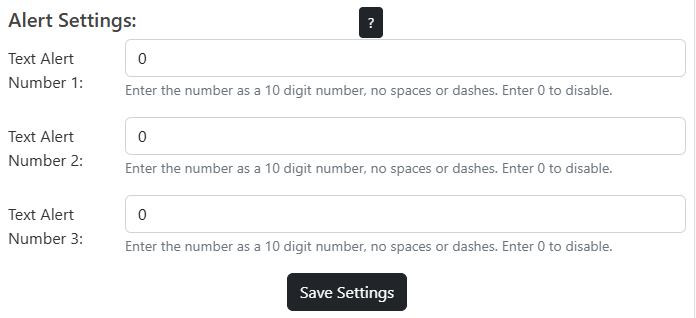
You can configure up to 3 phone numbers to receive text alerts. This is set up by account, not by device, and the same text goes to all three numbers — so you, your helper, and one more can all get the "tank's getting full" or "we lost vacuum" text at the same time.
FAQs
That's almost always a private-browsing or cookie setting. Make sure you're in normal mode (not private/incognito) and that cookies are enabled — once those are right, you log in once and it remembers you. Tell me your phone and browser and I'll walk you through the exact settings.
Yes. Claim them all to the same account and manage them together.
That bogus 0.0°F is almost always the first reading right after the device powers up or reconnects — it hasn't waited long enough for temperature data. On marginal Wi-Fi a hub will reboot when it drops the connection, then report 0.0°F and 0% signal on that first reading. A flaky USB adapter causes the same reboots, so swapping the adapter is a good test. We pushed a software update so the device now tries up to 5 times to get a good (non-0.0) reading before reporting, and the false alerts stopped. In the meantime, a node always reads temperature correctly, so you can use a node for temperature. Still seeing it? I can add backend logic to only alert on consecutive 0.0 readings.
Have a question this doesn't answer? Email info@sapspy.com or call 920-809-4811 — we're producers too.
This website uses cookies that help the website to function. We use these cookies to provide you with improved and customized user-experience. By tapping 'accept,' you consent to the use of cookies. For more info, see our privacy policy.